
About the Alpha
Baking Web Store and App
Food service is a constantly changing industry and we wanted to develop a convenient way for our customers to conduct their daily business.
Ordering on the app is simple, and you can view, add, and edit your orders at any time (before your usual order cutoff when the bread is already being shipped to you). You can also view invoices and make payments through the same, secure interface for convenience.
How to Access the Web
Store or Install the App
The Alpha Baking Web Store is always available at: https://www.alphabaking.com/SC/
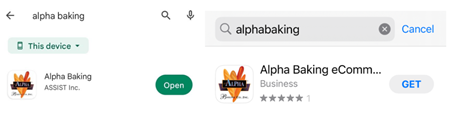
We also have native Apple and Android apps (which behave the same) in their respective normal app stores. Simply search 'Alpha Baking' in these appropriate stores and download.
You can also visit this page on our website to find direct links to those specific apps: https://www.alphabaking.com/apps/
How to log In to
Alpha Baking App
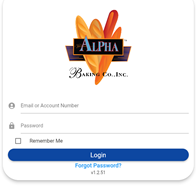
Any customer who is currently set up for web ordering will be able to login to the app or store with the same Username and Password that you have been using all along. If you are accessing the web store from a browser where you have saved your username and password for auto-completion, it will also remain saved and available for your continued use.
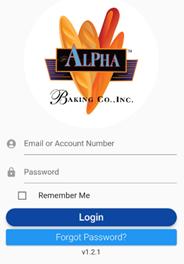
If you do not have a web ordering account set up yet please contact customerintegration@alphabaking.com
About the Home page
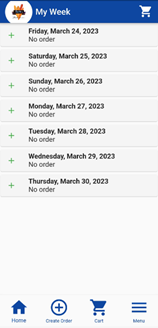
The home tab organizes your weekly orders and makes it easy to manage your weekly orders. By selecting your desired order dates, you can view all the relevant details and keep track of your orders effortlessly.
How to add Alpha products
to the carts
Ordering Alpha products is now very easy. Simply click on the ‘Create Order’ button located at the bottom of the page and select your shipping location. If you need to update or add an additional shipping address, please reach out to customerintegration@alphabaking.com
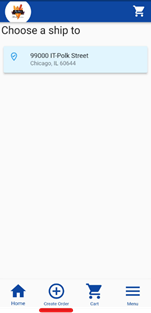
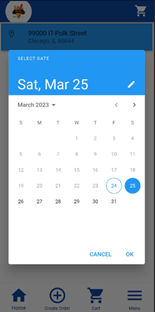
Once you select your shipping location, you need to select your shipping date.
NOTE: Orders can only be added for 2 or more days out.
After selecting your preferred delivery date, you can either use the search bar or browse through the page to find the products you want to order. To indicate the quantity of each item, simply click on the plus [+] or minus [-] buttons. You can add multiple products to your cart this way.
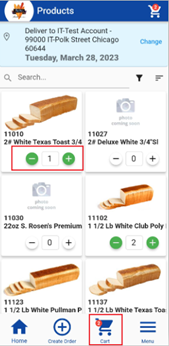
Once you have finalized your order, you can proceed to checkout by clicking the "card" button located at the bottom of the page.
How to place order
To place an order, click on the Cart symbol at the bottom of the page. This will take you to your order page where you can verify your desired products. To submit your request, click on the 'Place Order' button.
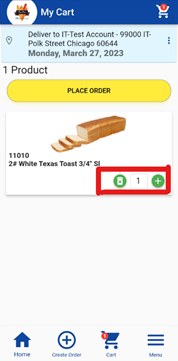
If you change your mind about a product, you can easily add or remove it by using the plus [+] button to increase quantity or the trash bin to remove a quantity/item.
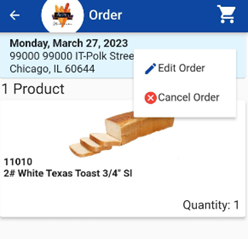
On the order page, you also have the option to cancel or edit your order. Simply click on the three dots to access these options.
How to View your Invoice
After you have placed your order, you should receive your invoice within 24 hours. In case you do not receive it within this time frame, please reach out to customerintegration@alphabaking.com
To access your invoice, simply click on the 'Menu' button and select 'Open Invoice'.
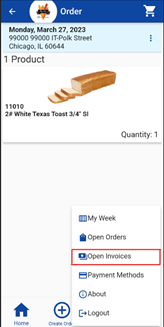
Once you go to the Open Invoice page, you will see your order details and payment options displayed in a yellow button.
To view more details about the invoice, click on the three dots located on the left side of the invoice detail section and select 'View Invoice Details'.
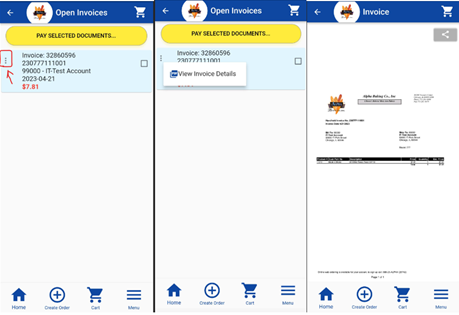
To share your invoice with
others, simply click on the share button located at the top right corner of the
page  .
.
How to make a payment
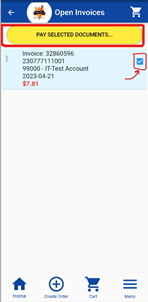
If you wish to make a payment, head to the 'Open Invoice' section and select the invoice by clicking the checkbox on the right. Proceed to click on the yellow ‘Pay Selected Document’ button.
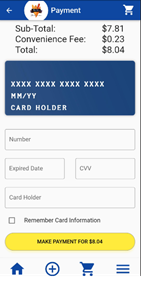
Next, select your preferred payment method and input your credit card details. If you want to save your card information for future payments, simply select the 'Remember Card Information' option..
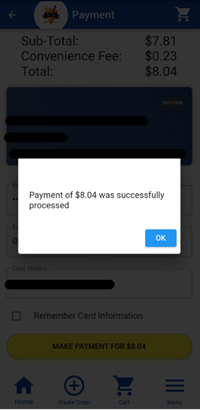
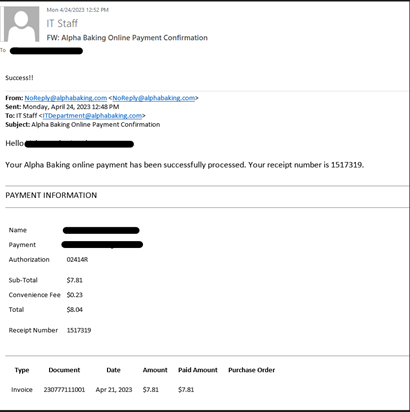
After you have successfully made a payment, a popup will appear indicating that the payment has been processed successfully, and you will also receive an email notification.
NOTE: once payment has been made, your order invoice will no longer appear under the 'Open Invoice' tab on your phone. Instead, it will be listed under 'Closed Invoice.' However, you can still access your past invoices on the Alpha Baking Web Order page, which is a website version of your Alpha Baking mobile app.
Please go to https://www.alphabaking.com/sc/#/ and login with the same username and password as your Alpha Baking App.
How to save your payment option (Optional)
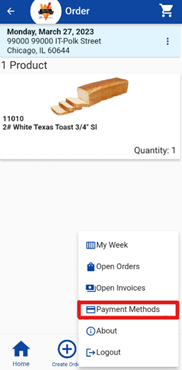
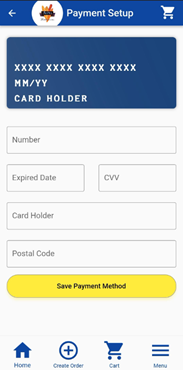
To set up a payment option, tap
on the menu button located at the bottom of the screen. Next, select the
'Payment Methods' option and enter your payment details. You can add multiple
payment methods and choose one as your primary card for automatic payments.
If you have any questions regarding account or invoice, please email customerintegration@alphabaking.com